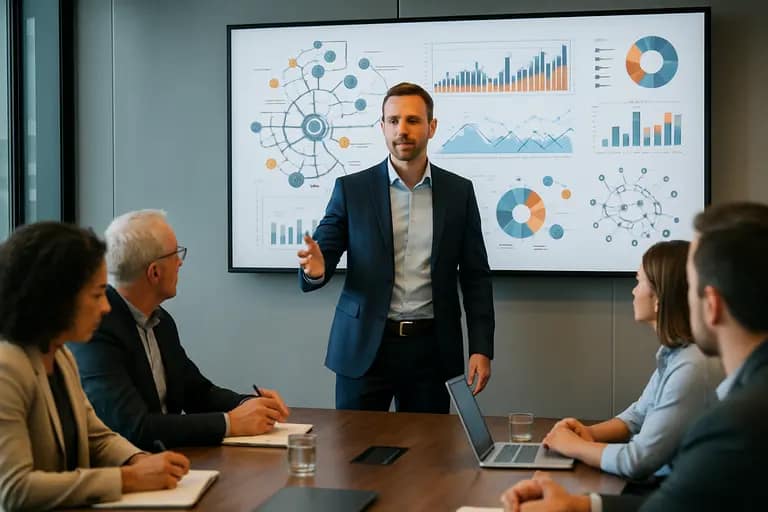
Google Meet presentation screenshots are turning slide decks into something more permanent than a live visual aid. When Gemini’s “Take notes for me” is active, presented slides, charts, diagrams, and related material can be captured into the meeting-notes document, so a slide may be revisited long after the speaker stops explaining it.
That raises the standard for a presentation-ready deck. A slide that works with narration can fail when someone encounters it later as a static image with only surrounding notes for context.
Google Meet presentation screenshots turn slides into meeting records
Google began the visual screenshot rollout on August 3, 2026. The feature is intended to preserve visual context that a transcript can miss, especially when a speaker refers to a chart, diagram, or slide without describing every detail aloud.
Current screenshot settings guidance adds a practical detail: screenshots can include presentation-like resources, and presented content must remain on screen for at least 10 seconds to be included. Participants are notified when screenshots may be captured, and screenshot settings can be managed depending on account and administrator controls.
The change is subtle but consequential. Presenters used to design mainly for the room or video call. Now they also need to consider the meeting artifact created afterward, where slides can be detached from pacing, gestures, cursor movements, and verbal explanation.
A Slide Can No Longer Depend Entirely on the Presenter
Many effective live presentations use sparse slides. A chart appears while the speaker explains the anomaly. A photograph fills the screen while the presenter supplies meaning. A slide titled “The Problem” works because everyone heard the previous two minutes.
As a screenshot, the same slide can become ambiguous.
The answer is not to overload every slide with text. It is to add enough standalone context that the main point survives without a narrator. If a colleague opened only this slide tomorrow, could they identify the subject, understand what they are seeing, and explain the intended takeaway?
That often means replacing headings such as “Results” or “Next Steps” with message-driven titles. “Customer Churn Fell After the June Onboarding Change” carries meaning when separated from the presenter. “Results” does not.
Design for the Screenshot, Not Only the Screen
Screenshot-aware design favors clarity over dependence on live explanation. Titles should state the point. Labels should identify important numbers. Units and time periods should be visible. Acronyms need enough context to remain intelligible later.
The table shows how common slide choices behave when they leave the live presentation and enter meeting notes.
| Slide element | Works live | Risk as a screenshot | Better approach |
|---|---|---|---|
| Generic heading | Presenter supplies meaning | Context disappears | Use a message-driven title |
| Unlabeled chart | Speaker explains axes | Data becomes unclear | Label units, periods, and key series |
| Full-screen image | Narration creates meaning | Image may look arbitrary | Add a short contextual caption |
| Dense process diagram | Presenter guides attention | Viewer may not know where to look | Emphasize the key path or stage |
| Animated build | Meaning appears step by step | Capture may show one state | Make each visible state understandable |
The goal is self-contained clarity, not self-contained completeness. Slides still need restraint. The viewer simply should not have to reconstruct missing narration to understand why a slide mattered.
Charts and Diagrams Need Their Own Explanatory Layer
Charts are especially vulnerable because presenters often rely on pointing or spoken interpretation. “Look at the spike here” works in real time. In a saved image, “here” has disappeared.
A stronger chart identifies its conclusion visually and verbally. Use a title that states the finding, direct labels on important series, or a short annotation marking the event that changed the trend. Decorative legends matter less than making the main comparison immediately legible.
The same principle applies to process diagrams, timelines, and embedded media. If a deck uses video, good video clip presentation practices matter because a captured frame may not communicate the full sequence or purpose of the clip.
Privacy and Presentation Timing Become Design Decisions
The workflow also creates a governance question. A presenter may briefly show a discussion-only slide, reveal an internal dashboard while switching windows, or display a sensitive visual that should not become part of a persistent meeting document.
Google gives administrators controls over when visual screenshots are allowed, while users are notified when screenshot capture is active and can manage it from the notes panel. Those controls reduce risk, but they do not replace presentation discipline.
Teams should decide before the meeting which slides are safe to preserve and which materials should remain outside the shared deck. Presentation hygiene now includes retention awareness.
Timing matters too. Because Google says content must remain presented for at least 10 seconds to be included, presenters should not treat the feature as a perfect archive. Fast transitions or brief references may not appear. Meeting notes are a selective record, not a guaranteed copy of every visual shown.
Three Signals Will Shape Screenshot-Aware Deck Design
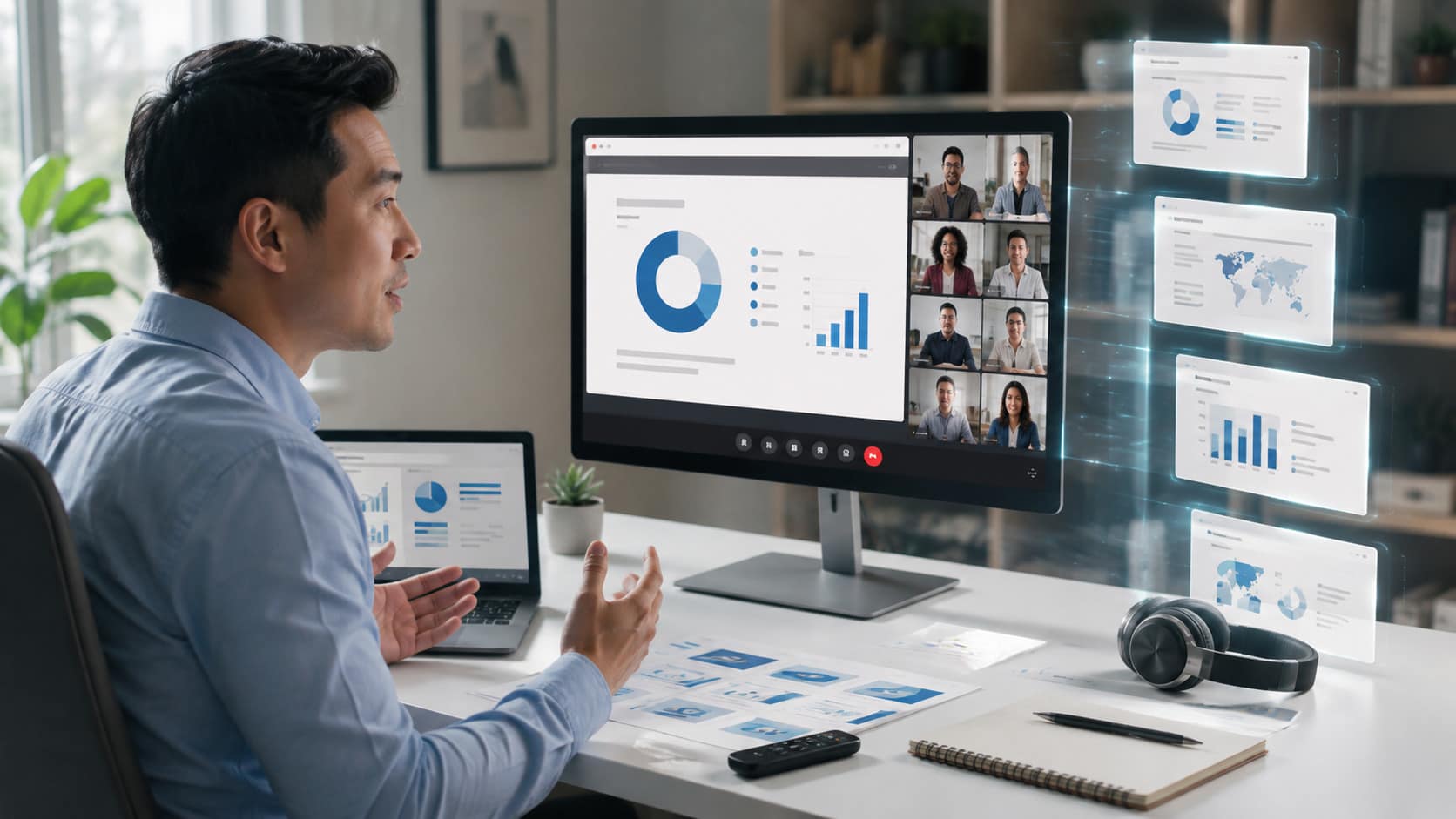
The pressure point is whether presentation design catches up with a workplace where decks increasingly become recordings, AI summaries, screenshots, and reference documents.
Watch how often teams rely on AI notes instead of reopening the original deck, whether screenshot capture expands across more meeting workflows, and how organizations handle sensitive visual material. Those shifts will determine how aggressively teams redesign templates for post-meeting use.
The strongest decks will still feel clean and focused in the room. They will simply carry enough portable meaning to remain useful afterward.
Google Meet presentation screenshots make that distinction harder to ignore. A presentation-ready slide is no longer just one that looks good while someone is speaking; it is one that still communicates when the speaker, pointer, and live context are gone.
Frequently asked questions
Does Google Meet automatically screenshot every presentation slide?
No. Screenshot capture is tied to “Take notes for me” and applicable account and administrator settings. Google also says presented content must remain visible for at least 10 seconds before a screenshot can be included.
Can presenters tell when Google Meet may capture screenshots?
Yes. Google Meet displays a notification informing participants that Gemini may improve meeting notes with screenshots when the feature is active, giving presenters visibility into how presented material may be preserved.
Should slides contain more text because of Google Meet screenshots?
Not necessarily. The better approach is adding enough context through descriptive headings, labels, annotations, and clearly identified data rather than turning every presentation slide into a text-heavy document.
What kinds of presentation visuals can appear in Google Meet notes?
Google says screenshots may capture presentation-like content such as slides, charts, diagrams, and other visual material shared during a meeting when screenshot capture is enabled.
How should presenters design slides for AI-generated meeting notes?
Slides should use clear titles, readable labels, visible units, concise annotations, and enough context to make the main message understandable even when someone views the slide without hearing the original presentation.